Customer download help
Get E.G.O. TV 2.0 on your screen.
Use the complete written guide below to install and move E.G.O TV 2.0 on your Fire TV device.
See FAQs and video helpHow to download E.G.O TV on a Fire TV or Amazon Fire Stick
Watch the step-by-step walkthrough for installing E.G.O TV on your Fire TV or Fire Stick.
E.G.O TV 2.0 Download Instructions – E.G.O (Everyone’s Great Opportunity) TV
A. Installing E.G.O TV 2.0
1. Connect to your wifi network.
2. From the Firestick Home Screen, locate the magnifying glass on the menu bar and hit select.
3. Select the down button on your remote to select the search box.
4. Type in the letter “D,” which will populate the word “Downloader” at the bottom of your screen. Hit select on your remote.
5. Select “Downloader.”
6. Select the “Up” button on your Firestick remote to go to the text box and hit select.
7. On the keyboard, select “788320.”
For new devices, when prompted:
A. Select “Settings.”
B. Select “About.”
C. Select “Fire TV Stick” 5 times until the device becomes a developer.
D. Select the back button.
E. Select “Developer options.” Select “Install unknown Apps.” Select “Downloader” to turn “on.”
F. Select the back button 4 times to return to the Downloader app.
8. Select “Install.”
9. Once the app is finished installing, select “Open.”
10. Select “Save” to choose TV as your device. (For mobile users, select Mobile.)
11. Select “Add User” to input your provided Username. Select “Next” once your username is entered.
12. Enter your provided Password. Select “Next.”
13. Select “Add User” once all fields have been entered.
14. Select “Download” to download your watchlist.
B. Moving E.G.O TV 2.0
1. From your home screen, go right and locate and select the tile with three squares and a plus sign to access your applications.
2. Select the left button on your remote to go to the end of your application list.
3. Locate the E.G.O TV 2.0 application and select the button with 3 lines on your remote.
4. A small menu will populate on the lower right-hand corner of your screen. Locate and select “Move To Front.”
5. Hit the Home button on your remote.
For additional assistance please call (919) 503-3364 / (919) 307-1774 or email watchegotv@gmail.com (you may also use access@watchegotv.com as a backup address for inquiries). We are available Monday-Saturday, 9:00am-7:00pm EST. Sundays 11:00am-7:00pm EST. Please allow up to 72 hours for a response.
Service sign-up form — full service, no trial
Ready for full service?
Get started
Sign up for full service.
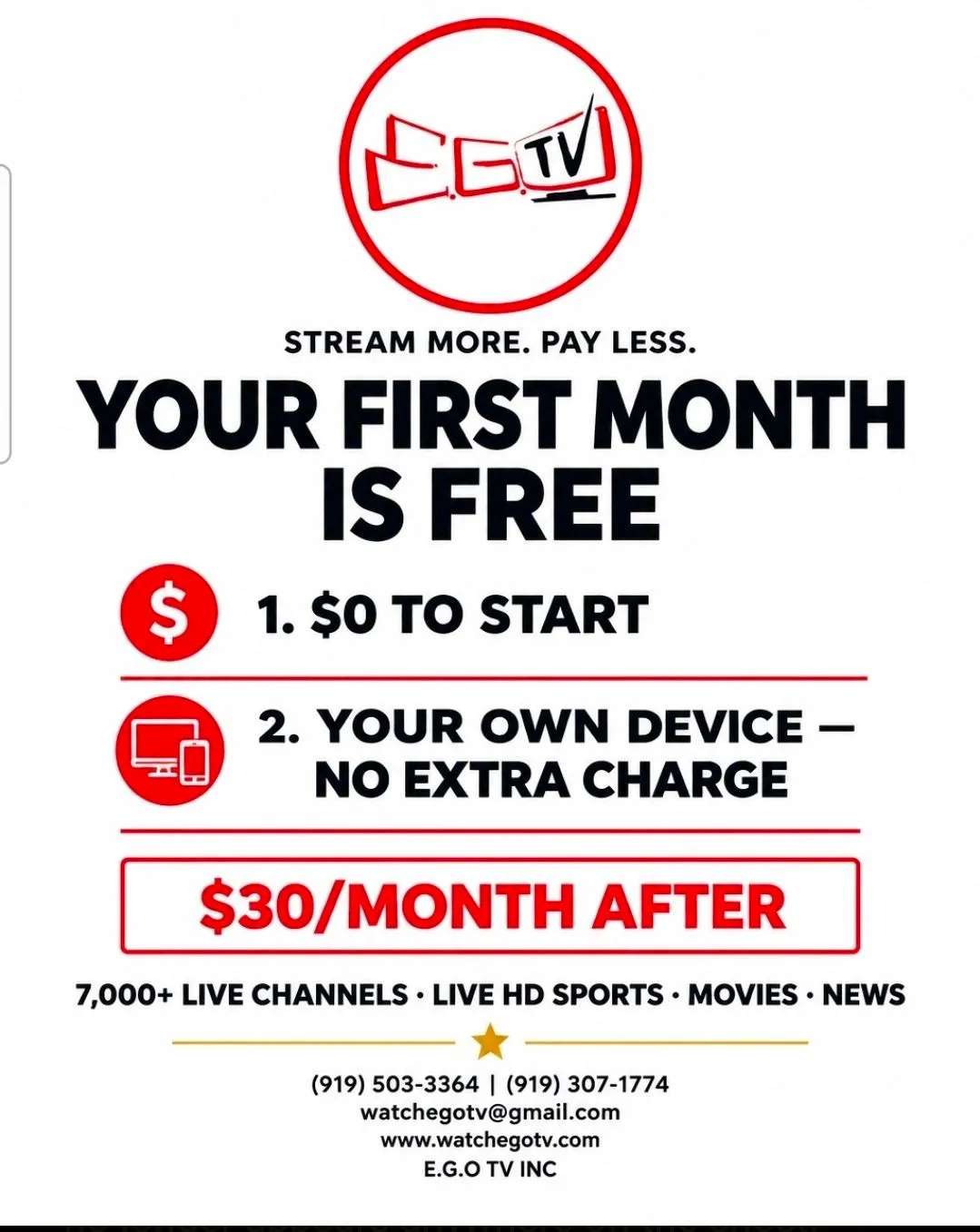
Already watching and ready to make it official? Fill out the Service Sign-Up form and we’ll get you set up. Your first month is free when you sign up for new internet services with us — after that, it’s $30/month. Restrictions apply.